Prepare an image for a form with size, pixel, and format limits
A form can reject a small file because its dimensions are wrong, or reject a correctly sized image because its format is unsupported. Treat the upload instructions as several independent conditions. Write down the maximum bytes, required width and height, accepted formats, and any rule about cropping or backgrounds before editing.
Start with the original image and keep a copy. Resizing removes pixels; lossy compression discards some visual information. Repeatedly editing downloaded copies can accumulate damage, so return to the original when you change your approach.
Choose the operation from the actual requirement
A KB limit controls the encoded file, while pixels describe its width and height. Neither predicts the other: two images with identical dimensions can have different file sizes because their content and encoding differ. Changing DPI alone does not solve a pixel or file-size requirement.
| Requirement | First action | What to preserve |
|---|---|---|
| Exact width and height | Resize to those dimensions | Check framing; keep Smart resizing off afterward |
| Maximum dimensions only | Reduce dimensions if necessary | Stay above any stated minimum |
| File size only | Compress with a size cap | Try the original dimensions first |
| JPG only | Export a real JPG | Choose a background for transparent areas |
| Transparency required | Use an accepted PNG or WebP | Confirm the receiving form supports it |
Try a 30 KB upload limit at exactly 600 × 400 pixels
The sample card already has the required dimensions. Its 106,395-byte JPG is too large for a 30,000-byte form limit. The textured area, small type and one-pixel lines give you three places to check what compression does to detail.
Download the original detail card (JPG, 106,395 bytes)
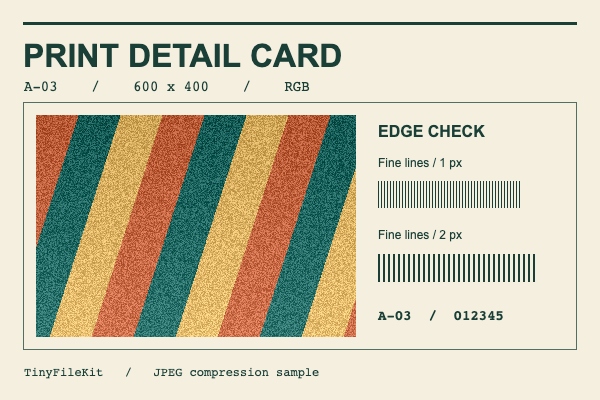
- Open the sample card in Image Compressor. Choose JPG, set Maximum file size to 30 KB, then select Process images.
- Download the result and check its file properties. In Chromium 153 our JPG measured 29,880 bytes at 600 × 400 pixels, clearing the limit by 120 bytes. At 100% zoom, look for the digits 012345 below the line patterns. The displayed size of 29.9 KB is rounded.
- Try 20 KB with the same original. Our smallest export at those dimensions measured 24,167 bytes. If the form requires exactly 600 × 400, keep that result out of the upload. Continue Smart can reduce the pixel dimensions. Other browsers can produce a different byte count, so compare your own download with the form’s limit.
A practical sequence
- Read the form's instructions and distinguish exact dimensions from maximum dimensions.
- Use Image Resizer for pixel changes. Choose Fit whole image if edges must remain and padding is allowed; choose Crop to fill only when losing edges is acceptable.
- Select a format the form accepts. JPG is useful for opaque photos; PNG retains transparency. WebP is an option only when explicitly accepted.
- Enter the byte cap in Image Resizer. Inspect the dimensions, format, and actual file size in the result before downloading.
- Upload the downloaded result, keeping the original available for a different version.
When compression or upload still fails
A PNG may remain large because its encoder does not use the JPG quality control. If transparency is unnecessary and JPG is allowed, changing format can help. If dimensions are flexible, Smart resizing offers a smaller image; check the new dimensions against the form's minimum. A target is an upper limit, and the tool may report that it could not reach it.
Renaming a HEIC or WebP file to .jpg does not convert its contents. Use Image Converter. If the file looks correct but is rejected, check whether you selected the newest download, whether the form requires portrait rather than landscape dimensions, and whether its size label uses a different unit convention. Follow the form's explicit byte limit when provided.
Check the file you will actually submit
Open the downloaded image and verify its format, width, height, and file bytes. Look at small text, hair, outlines, and any signature at full size. Confirm that nothing important was cropped and that transparent areas have the intended background. Passing these technical checks prepares the file; the receiving service still applies its own content rules.